If your company/account/project uses Slack as a communication medium, you can integrate Slack with AlooChat to manage all the inbox conversations in your slack workspace.
How to integrate Slack with AlooChat**?**
Step 1. Go to Settings -> Integrations -> Slack -> Connect.

Step 2. Enter your Slack workspace URL as prompted.

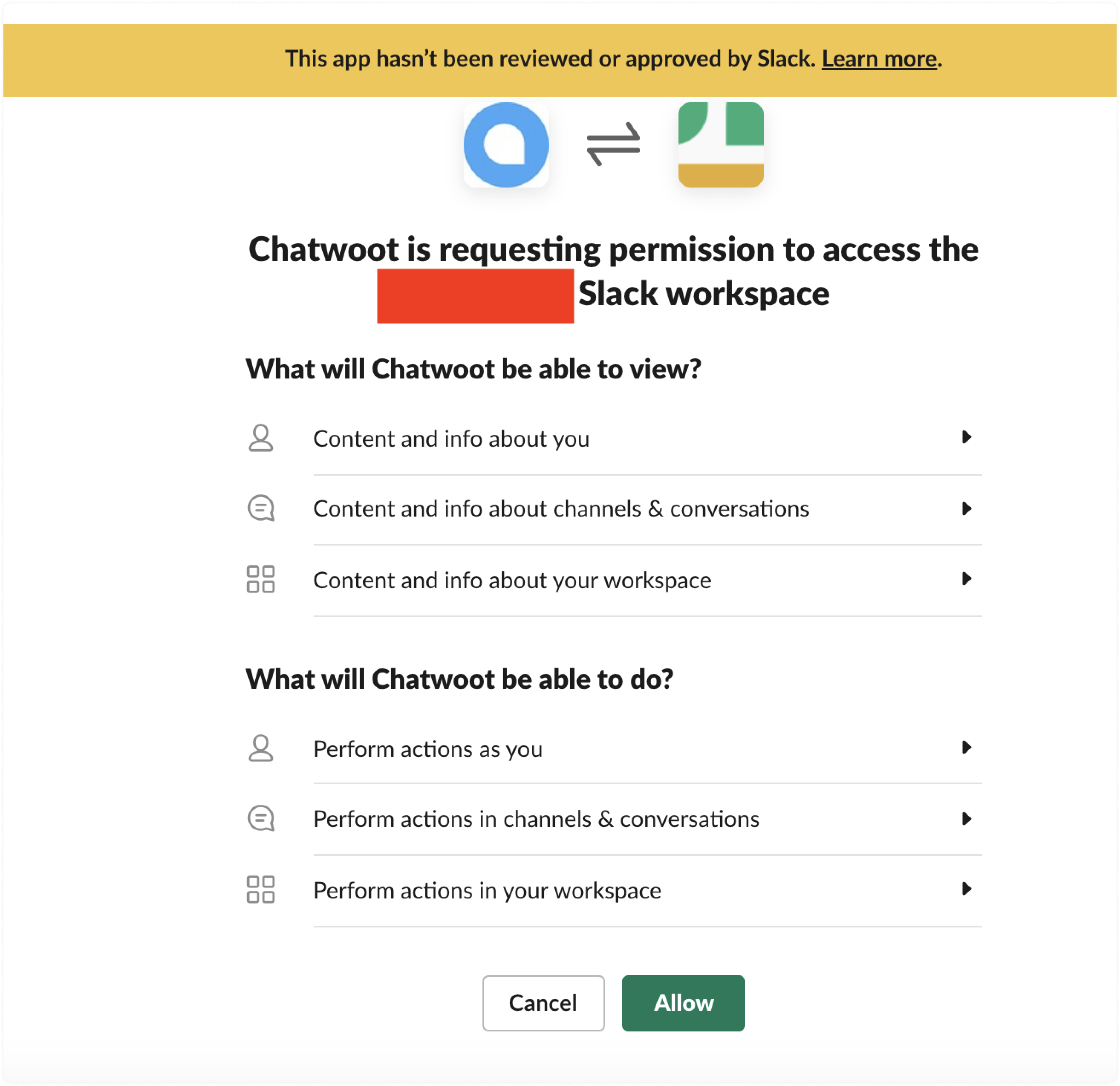
Step 3. Review the permissions and allow the AlooChat app to access your Slack workspace.
Step 4. You will be redirected to the setup screen, where you will be able to see a list of your Slack channels (public and private). (For private channels, see the section below) You need to select a channel of your choice from the dropdown menu where you want to receive your AlooChat conversations.
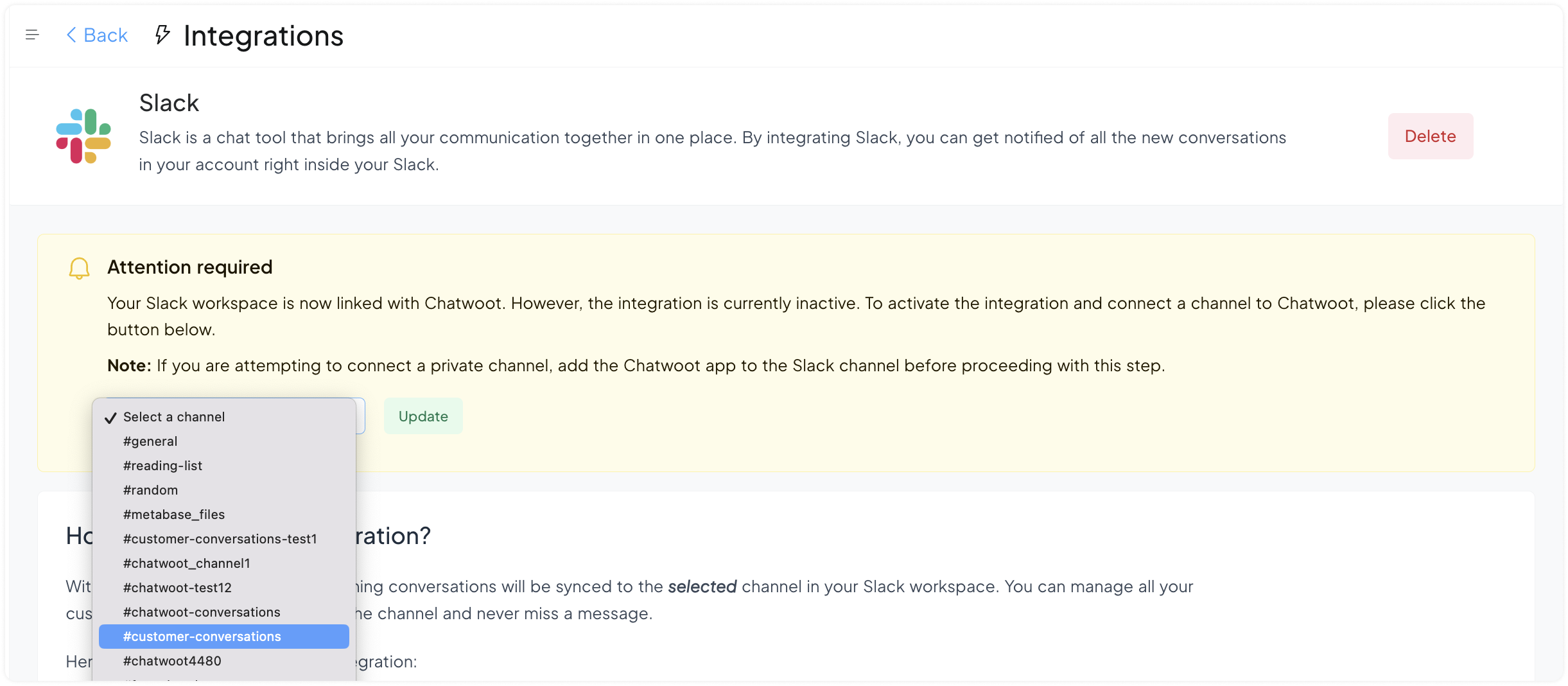
Click the Update button. Now, the integration is complete.
Important note
If you have connected Slack before September 2023, you would not have had the option of selecting a specific Slack channel to manage your conversations from. If you would like to change that and select a specific channel of your choice, you will need to delete your existing Slack integration from the AlooChat app and connect it again.

FAQ
Q. I am replying to a message, but it's not showing up in the AlooChat inbox.
A: When you reply to the message, reply under the same thread. Each thread represents a separate conversation, so to show your reply to the same message, you should reply under the thread. We use thread ID to verify the separate conversation.
Supported features
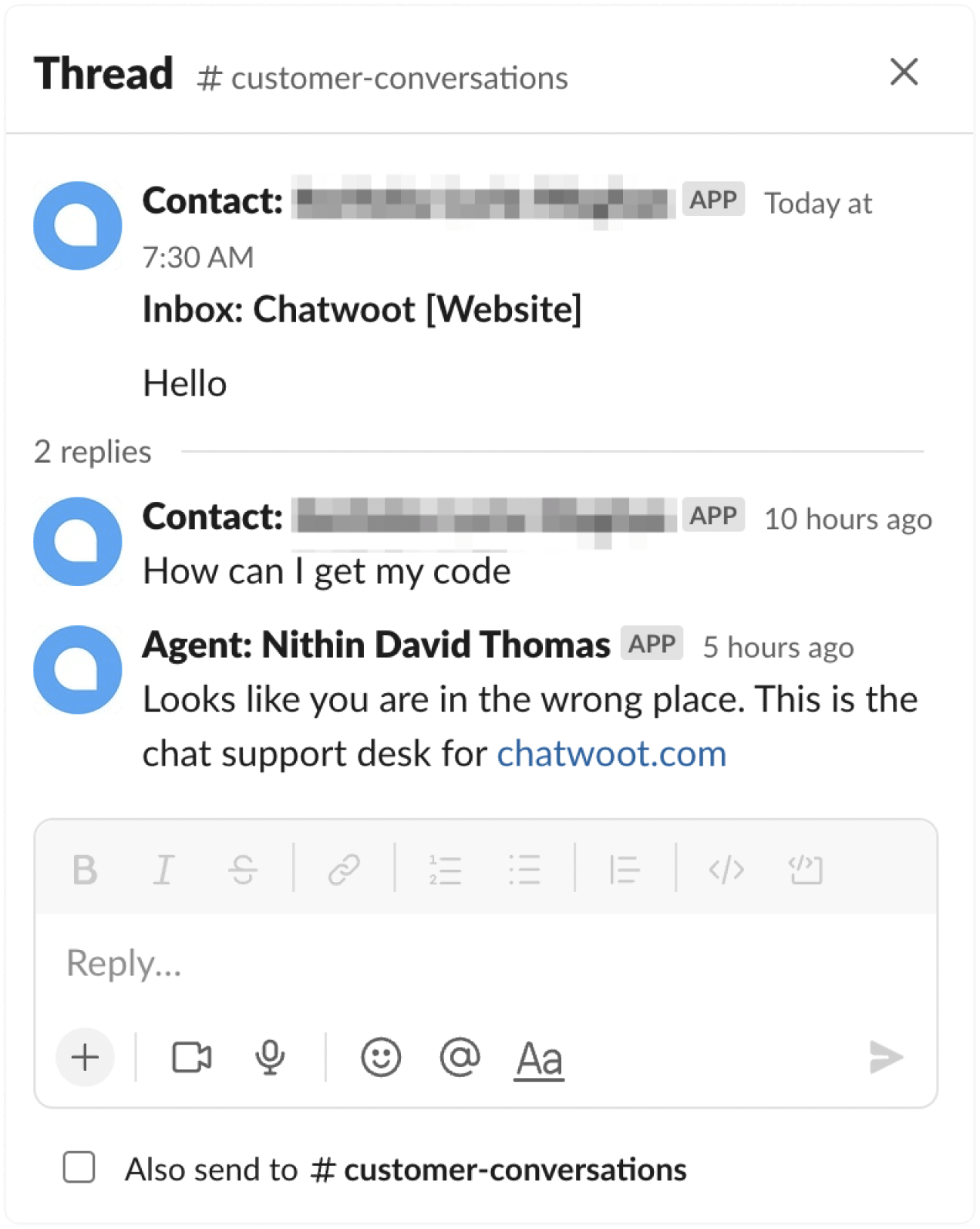
Answer from your agent profile
When you reply to a conversation from Slack, the customer receives the reply from your Agent profile in AlooChat.
Create private notes from Slack
You can create a private note in AlooChat from Slack. If you prefix a message with "note:", it converts into a private note and notifies any tagged agents. Here is an example:

How to add AlooChat to private channels?
AlooChat won’t be added to your private Slack channels by default. You’ll need to add it manually. Here’s how to do it:
Step 1:
After you authenticate with Slack, you’ll be redirected to a page in AlooChat where you can select the required channel.
Step 2: Go to Slack and open the private channel you want to connect. Click on the user icons at the top of the channel. Go to Integrations → Add apps.

Step 3: Search for AlooChat. You’ll see the AlooChat app in the list.

Step 4: Click on AlooChat to add it to the private channel. You’ll see a confirmation message saying that AlooChat has been added.

Step 5: Go back to the AlooChat app and refresh the page. The channel should now appear in the list. Select the channel and complete the integration.
Note: If it still doesn't work, connect the Slack integration with a public channel, then remove the integration from the AlooChat side and reconnect it again.